CircuitDK lets you define circuit logic and intent in Python while continuing to edit and arrange the schematic in KiCad. Python owns parts, selected properties, and intended connectivity; KiCad owns symbol placement, wires, labels, and presentation.
Use familiar infrastructure-as-code operations to understand and apply a circuit change:
circuitdk diff
circuitdk deploy
circuitdk test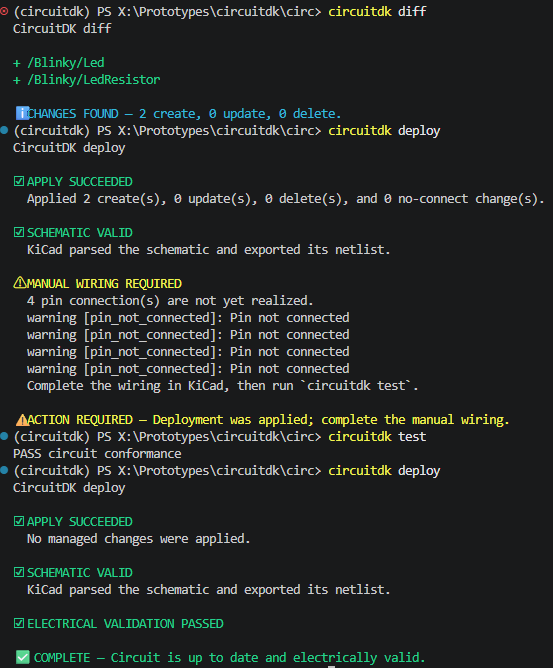
Note
CircuitDK is currently an experimental tool for KiCad 10 projects. See Current scope before using it for production hardware.
Managing circuit logic as code makes changes reviewable in Git, testable, and reusable. At the same time, a schematic must remain easy for people to read and arrange.
CircuitDK lets you keep both benefits:
- review circuit changes as a diff before applying them;
- automatically test whether the KiCad wiring matches the declared connectivity;
- catch suspicious SPI, I²C, and UART pin assignments before arranging the schematic;
- update parts and managed properties without losing carefully arranged KiCad placement and wiring;
- reuse common circuit structures with ordinary Python functions and classes; and
- AI-friendly: structure circuit logic as testable Python for more reliable AI-assisted design.
Keep logical design verifiable in Python and finish the human-readable schematic in KiCad. That is the workflow CircuitDK is designed for.
CircuitDK's defining feature is reconciliation: code owns circuit intent without taking ownership of the schematic's visual presentation.
| Project style | Circuit description | KiCad schematic workflow | Primary focus |
|---|---|---|---|
| CircuitDK | Python | Reconcile into an editable schematic while preserving presentation | Desired state, drift, deploy, and semantic tests |
| SKiDL | Python | Generate EDA outputs from a Python circuit model | Programmatic circuit and netlist construction |
| atopile | atopile language | Tool-managed hardware design workflow | Declarative hardware design and package reuse |
| Direct KiCad scripting | API-specific | Determined by the script | Custom editor or file automation |
CircuitDK is intended for users who want Python to be authoritative for logical design while keeping the KiCad schematic as a carefully arranged, human-readable engineering document.
- Declare generic KiCad parts and resolve their pins from project or global symbol libraries.
- Model named signal, power, and ground nets with deterministic logical IDs.
- Preview managed symbol and no-connect changes with a colored semantic diff.
- Insert and update symbols while preserving existing placement and wiring.
- Detect KiCad-side drift from the last applied managed state.
- Compare intended connectivity with a netlist exported by KiCad itself.
- Run KiCad ERC and distinguish successful deployment from pending manual wiring.
- Mark intentionally unused pins with
no_connect(). - Declare SPI, I²C, and UART connections with role-aware pin checks.
- Express common patterns such as pull-ups, pull-downs, decoupling, LED indicators, and voltage dividers with high-level APIs (experimental).
- Adopt symbols from an existing schematic and rename logical IDs without replacing them.
- Record resolved symbol and footprint library sources in a lock file.
- KiCad 10
- Python 3.11 or later
- uv
- a platform on which
kicad-cliis available
CircuitDK automatically detects the standard KiCad 10 installation on Windows:
C:\Program Files\KiCad\10.0\bin\kicad-cli.exe
For another installation location, set CIRCUITDK_KICAD_CLI to the executable path.
Install the CLI from PyPI as a uv tool:
uv tool install circuitdk
circuitdk --versionTo use a source checkout, change to its root and install the CLI package directly:
cd circuitdk
uv tool install .
circuitdk --version
This installs a standalone, non-editable command from the checked-out source. Re-run
uv tool install --reinstall . after pulling a newer version.
This example describes an LED powered through a two-pin input connector:
J1.1 (VDD) -> resistor -> LED -> J1.2 (GND)
First, create an empty KiCad 10 schematic at hardware/blinky.kicad_sch. Then create
circuit.py beside circuitdk.toml:
from circuitdk import Circuit, KicadProject, Part, V, kohm

circuit = Circuit("Blinky")

vdd = circuit.power("VDD", voltage=5 * V)
gnd = circuit.ground("GND")

power_input = Part(
    circuit,
    "PowerInput",
    symbol="Connector_Generic:Conn_01x02",
    footprint="Connector_PinHeader_2.54mm:PinHeader_1x02_P2.54mm_Vertical",
    pin_overrides={"VDD": "1", "GND": "2"},
)

resistor = Part(
    circuit,
    "LedResistor",
    symbol="Device:R",
    value=1 * kohm,
)

led = Part(
    circuit,
    "Led",
    symbol="Device:LED",
)

vdd.connect(power_input.pin("VDD"), resistor.pin("1"))
circuit.connect(resistor.pin("2"), led.pin("A"))
gnd.connect(led.pin("K"), power_input.pin("GND"))

# Assembly-specific choices. These may instead come from BOM or variant data.
resistor.footprint = "Resistor_SMD:R_0603_1608Metric"
led.footprint = "LED_SMD:LED_0603_1608Metric"

project = KicadProject(circuit, "hardware/blinky.kicad_sch")
Create circuitdk.toml:
[project]
entrypoint = "circuit:project"
state_directory = ".circuitdk"
Preview and apply the managed symbols:
circuitdk diff
circuitdk deploy
New symbols appear in a staging area. Open the schematic in KiCad, arrange the symbols, and draw
the three declared connections. CircuitDK deliberately does not route wires. Until that work is
done, deploy reports that the managed state was applied and that manual wiring is still required.
After wiring the schematic, verify the result:
circuitdk testLater deployments preserve the positions and wire geometry edited in KiCad.
The best place to select a footprint depends on what determines that choice.
For a specific MCU, module, connector, or another part with one valid footprint or a useful default, specify the footprint together with the part. In the quick start, the selected power connector is defined this way:
power_input = Part(
    circuit,
    "PowerInput",
    symbol="Connector_Generic:Conn_01x02",
    footprint="Connector_PinHeader_2.54mm:PinHeader_1x02_P2.54mm_Vertical",
    pin_overrides={"VDD": "1", "GND": "2"},
)For resistors, capacitors, and other parts whose package depends on assembly or sourcing, omit the footprint while defining circuit logic and assign it later. The quick start uses direct assignment for a small, self-contained example:
resistor.footprint = "Resistor_SMD:R_0603_1608Metric"
led.footprint = "LED_SMD:LED_0603_1608Metric"
Because CircuitDK files are ordinary Python, a larger project can load the same assignments from BOM or assembly-variant data instead.
Use stable CircuitDK logical IDs rather than KiCad references such as R1 or D1. KiCad
annotation can change references, while construct paths remain stable.
circuit_id,footprint
/Blinky/LedResistor,Resistor_SMD:R_0603_1608Metric
/Blinky/Led,LED_SMD:LED_0603_1608Metric
The current API exposes each Part and its path directly. A project can therefore validate and
apply the CSV assignments with a small helper:
import csv
from collections.abc import Iterable
from pathlib import Path

from circuitdk import Part


def apply_footprints(parts: Iterable[Part], source: Path) -> None:
    parts_by_id = {part.path: part for part in parts}

    with source.open(encoding="utf-8", newline="") as file:
        assignments = {
            row["circuit_id"]: row["footprint"]
            for row in csv.DictReader(file)
        }

    unknown = assignments.keys() - parts_by_id.keys()
    missing = parts_by_id.keys() - assignments.keys()
    if unknown:
        raise ValueError(f"assembly data contains unknown parts: {sorted(unknown)}")
    if missing:
        raise ValueError(f"assembly data has no footprint for: {sorted(missing)}")

    for circuit_id, footprint in assignments.items():
        parts_by_id[circuit_id].footprint = footprint
Apply the selected assembly data after constructing the circuit and before creating the project:
apply_footprints(
    (resistor, led),
    Path("assembly.csv"),
)

project = KicadProject(circuit, "hardware/blinky.kicad_sch")Edit Python
|
v
circuitdk diff
|
v
circuitdk deploy
|
v
Arrange and wire in KiCad
|
v
circuitdk test
| Command | Purpose |
|---|---|
circuitdk synth |
Build the deterministic desired circuit from Python. |
circuitdk diff |
Preview changes to code-owned schematic state. |
circuitdk deploy |
Apply managed parts and properties atomically. |
circuitdk test |
Check connectivity, pin coverage, libraries, and ERC. |
circuitdk drift |
Find managed fields changed in KiCad since the last deploy. |
circuitdk adopt |
Bring an existing KiCad symbol under CircuitDK management. |
circuitdk move |
Rename a stable logical ID without replacing its symbol. |
circuitdk lock |
Record or verify resolved library definitions. |
circuitdk inspect |
Inspect desired and actual managed state as JSON. |
deploy answers whether CircuitDK applied the managed state. test answers whether the complete
schematic, including manual wiring, conforms to the declared circuit.
| Python owns | KiCad owns |
|---|---|
| Managed symbol existence | Symbol coordinates |
| Symbol library ID | Rotation and mirroring |
| Value and footprint | Wire and junction geometry |
| BOM, board, and DNP flags | Label and field positions |
| Intended pin connectivity | Notes and graphics |
| Explicit no-connect intent | Overall schematic presentation |
Moving, rotating, or rewiring a managed symbol in KiCad does not cause CircuitDK to move it back. Changing a code-owned field such as its value or footprint in KiCad is drift and the next deploy restores the value declared in Python.
CircuitDK does not create, rewrite, or delete wires. When code removes a part, any resulting wire cleanup remains a manual KiCad operation.
Common circuit structures can be expressed concisely with high-level APIs:
# APIs in circuitdk.experimental are experimental and may change in future releases.
from circuitdk.experimental.patterns import decouple, pull_down
from circuitdk.parts import Capacitor, Resistor

pull_resistor = Resistor(circuit, "EnablePullDown", resistance=10 * kohm)
pull_down(
    signal=controller.pin("ENABLE"),
    resistor=pull_resistor,
    ground=gnd,
)

decoupling_capacitor = Capacitor(circuit, "ControllerDecoupling", capacitance=100 * nF)
decouple(
    power_pin=controller.pin("VCC"),
    capacitor=decoupling_capacitor,
    ground=gnd,
)
Intentionally unused pins can also be declared explicitly:
controller.pin("NC").no_connect()Describe an SPI bus and its peripheral connections together while keeping each signal's role clear:
from circuitdk.protocols import SPI

spi = SPI(
    circuit,
    "SensorBus",
    controller=controller,
    sck="SPI_SCK",
    mosi="SPI_MOSI",
    miso="SPI_MISO",
)
spi.add_peripheral(
    device=sensor,
    sck="SCLK",
    sdi="SDI",
    sdo="SDO",
    controller_cs="SENSOR_CS",
    device_cs="NCS",
)
A conflicting pin name is reported immediately:
# Intentional mistake: SPI_MISO is assigned to the clock role.
incorrect_spi = SPI(
    circuit,
    "IncorrectBus",
    controller=controller,
    sck="SPI_MISO",
    mosi="SPI_MOSI",
)
# ProtocolPinWarning: SPI_MISO is assigned as SPI clock,
# but its name suggests SPI peripheral-to-controller data.Adopt an existing symbol by its KiCad reference:
circuitdk adopt --reference R1 --id /Board/StatusLed/ResistorThe hidden CircuitDK:ID property becomes the stable link between Python and KiCad. A later code
refactor can retain that identity with a moved declaration:
project = KicadProject(
    circuit,
    "hardware/board.kicad_sch",
    moved={"/Board/OldName": "/Board/NewName"},
)- CircuitDK currently targets KiCad 10 schematics.
- Wire routing is intentionally manual.
- Hierarchical-sheet management, design blocks, and label-stub realization are not implemented.
- Save and close the schematic before deploying; unsaved editor state cannot be reconciled safely.
- CircuitDK verifies declared connectivity and KiCad ERC results. It does not prove that a circuit is electrically correct or suitable for manufacture.
- Getting started provides a more detailed tutorial and command usage.
- Python API reference summarizes the public classes, methods, attributes, reusable constructs, and units.
- CLI reference documents commands, exit codes, deploy status, and JSON output.
- Architecture explains reconciliation, ownership, state, and safety.
- Roadmap describes the supported release scope and future work.
- Development describes contributor setup and verification.