




A turtle graphics engine — a key feature of the Logo programming language — written in Swift.
Version 2 of TortoiseGraphics, rewritten for Swift 6 strict concurrency and SwiftUI.
let 🐢 = Tortoise()
🐢.penColor = .orange
🐢.penWidth = 2
for _ in 1...36 {
    🐢.forward(200)
    🐢.right(170)
}
Each drawing is a single-file example with a SwiftUI #Preview — open this
package in Xcode and pick a file under
Sources/Examples/Gallery/ to watch it draw
itself. swift run ExamplesRunner regenerates the images below.
 |
 |
 |
|---|---|---|
| Square Spiral | Fractal Tree | Koch Snowflake |
 |
 |
 |
| Circle Rosette | Filled Star | Waves |
Apps built with TortoiseGraphics2:
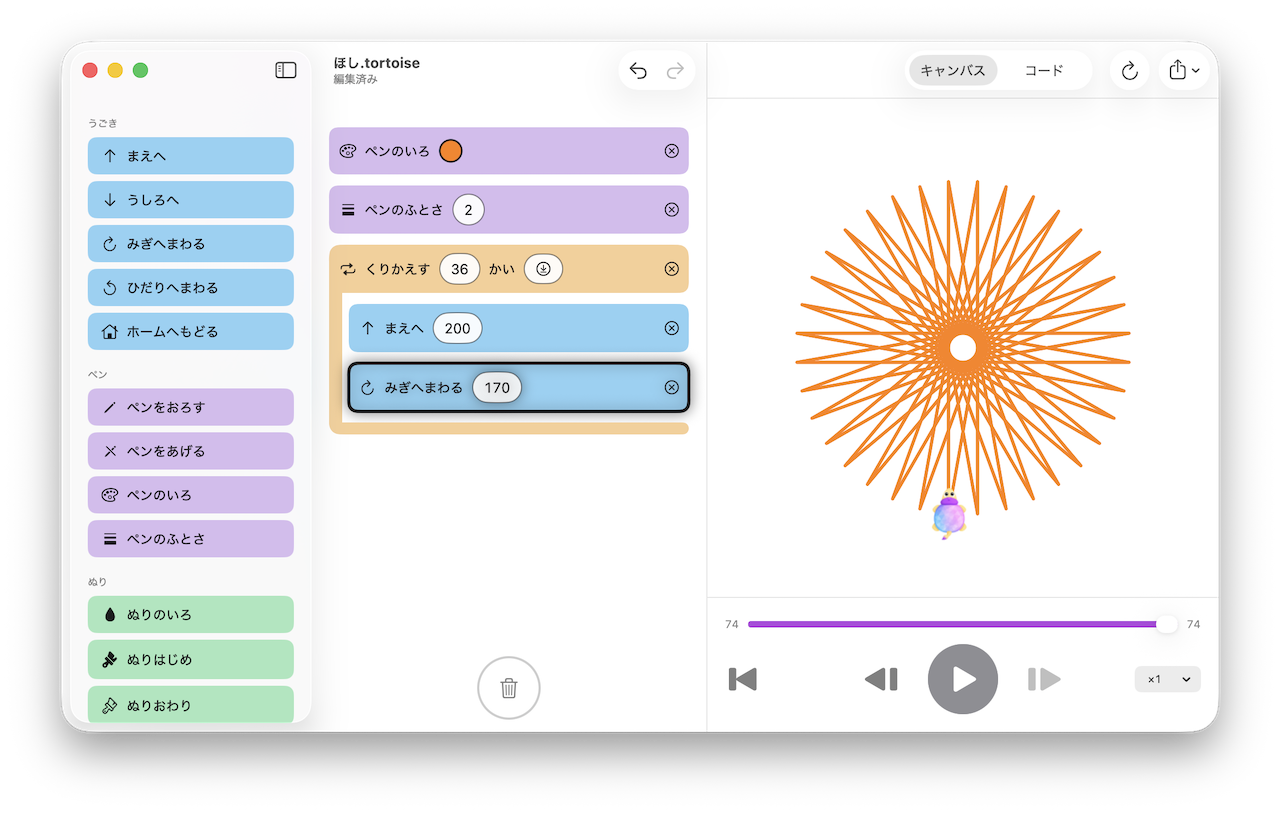
A visual programming app for kids — snap blocks together, press Run, and
watch the tortoise draw. Blocks expand into a Tortoise command stream
played by TortoiseCanvas with a TortoisePlayer (pause, single-step,
seek, and speed control, with the executing block highlighted), a code
pane shows the equivalent Swift program, and drawings export as SVG
straight from the library.
| Module | Description |
|---|---|
| TortoiseCore | Tortoise API + command stream (Codable). Foundation-only; no platform dependencies. |
| TortoiseUI | SwiftUI animated canvas view (TimelineView + Canvas). |
| TortoiseSVG | Tortoise → static SVG string. No platform dependencies. |
The design follows an event-sourcing pattern: Tortoise accumulates
[TortoiseCommand]; rendering is handled by separate, pure-function
consumers that replay the same stream. This makes SVG export, animation,
and testing all share a single source of truth.
- Swift 6.2+
- Xcode 26+ (Apple platforms)
- Platforms iOS 26+ · macOS 26+ · visionOS 26+ · Linux (
TortoiseCore/TortoiseSVGonly —TortoiseUIrequires SwiftUI)
Add the package in Xcode via File › Add Package Dependencies, or add it
to your Package.swift:
platforms: [
    .iOS(.v26), .macOS(.v26), .visionOS(.v26),
],
dependencies: [
    .package(url: "https://github.com/temoki/TortoiseGraphics2", from: "2.0.0-beta1"),
],
targets: [
    .target(
        name: "YourTarget",
        dependencies: [
            .product(name: "TortoiseCore", package: "TortoiseGraphics2"),
            .product(name: "TortoiseUI",   package: "TortoiseGraphics2"),
            .product(name: "TortoiseSVG",  package: "TortoiseGraphics2"),
        ]
    ),
]
Note While 2.0.0 is in beta, the version requirement needs a prerelease lower bound — a plain
from: "2.0.0"does not match prerelease tags.from: "2.0.0-beta1"resolves to the newest beta, and picks up the stable 2.0.0 release automatically once it ships.
Import only what you need — TortoiseCore alone is sufficient if you're
writing your own renderer. TortoiseUI and TortoiseSVG re-export
TortoiseCore, so importing either one already gives you Tortoise and the
rest of the core types.

import TortoiseUI

struct ContentView: View {
    var body: some View {
        TortoiseCanvas { 🐢 in
            🐢.speed = 5
            🐢.penColor = .blue
            for _ in 1...4 {
                🐢.forward(100)
                🐢.right(90)
            }
        }
    }
}
speed ranges from 1 (slowest) to 10 (fastest). Set it to 0 for instant
rendering — useful for static previews.
Pass a TortoisePlayer to pause, resume, single-step, seek, and override
the playback speed from your own UI. currentCommandIndex and isFinished
are observable — bind a "currently executing command" highlight directly:
@State private var player = TortoisePlayer()

var body: some View {
    TortoiseCanvas(🐢, player: player)
    Toggle("Pause", systemImage: "pause.fill", isOn: $player.isPaused)
    Button("Step", systemImage: "forward.frame.fill") { player.step() }
}
player.speedOverride is the viewer's speed control (like a video player's
speed button): while non-nil it takes precedence over the stream's speed,
and changing it never rewinds playback. Set it back to nil to follow the
program's own speed again.
import TortoiseSVG

let 🐢 = Tortoise()
🐢.penColor = .blue
for _ in 1...4 {
    🐢.forward(100)
    🐢.right(90)
}

let svg = TortoiseSVG.render(🐢)
// or:
let svg = 🐢.svg()

// Write to a file using Swift's built-in String method
try svg.write(to: URL(filePath: "square.svg"), atomically: true, encoding: .utf8)
By default the viewBox is cropped to the drawing's bounding box. Pass
fit: false (🐢.svg(fit: false)) to keep the full logical canvasSize
as the viewBox instead.
TortoiseCommand, Color, Point, and Size conform to Codable, so a
recorded drawing can be saved as JSON and replayed later by any renderer:
let data = try JSONEncoder().encode(🐢.commands)

let commands = try JSONDecoder().decode([TortoiseCommand].self, from: data)
let frames = CommandPlayer.play(commands: commands)
The coding keys are hand-written and frozen for the 2.x series, so the format is safe for app documents and golden files — see the Command Serialization article for the wire format and its stability guarantee.
| Method / Property | Description |
|---|---|
forward(_ distance: Double) |
Move forward by distance pixels |
backward(_ distance: Double) |
Move backward by distance pixels |
right(_ degrees: Double) |
Rotate clockwise |
left(_ degrees: Double) |
Rotate counterclockwise |
home() |
Teleport to origin and reset heading to north |
setPosition(x:y:) / setPosition(_:) |
Teleport to a position (pen draws if down) |
setX(_ x: Double) |
Teleport to (x, y) keeping current Y |
setY(_ y: Double) |
Teleport to (x, y) keeping current X |
circle(radius:extent:) |
Draw a circular arc (default extent: 360°) |
dot(size:) |
Draw a filled circle at the current position |
| Method / Property | Description |
|---|---|
penDown() |
Lower pen — movements draw lines |
penUp() |
Lift pen — movements don't draw |
isPenDown: Bool |
Whether the pen is currently down (read-only) |
penColor: Color |
Stroke color |
penWidth: Double |
Stroke width in logical units |
| Method / Property | Description |
|---|---|
beginFill() |
Start collecting fill polygon vertices |
endFill() |
Close and draw the fill polygon |
fillColor: Color |
Fill color |
isFilling: Bool |
Whether a fill region is currently active (read-only) |
| Method / Property | Description |
|---|---|
position: Point |
Current position in tortoise coordinates (read-only) |
heading: Double |
Current heading in degrees (0 = north, CW+); settable |
towards(x:y:) / towards(_:) |
Heading toward a point from current position |
distance(x:y:) / distance(_:) |
Distance to a point from current position |
| Method / Property | Description |
|---|---|
showTortoise() |
Make the tortoise visible |
hideTortoise() |
Hide the tortoise |
isVisible: Bool |
Whether the tortoise is visible (read-only) |
| Method / Property | Description |
|---|---|
backgroundColor: Color |
Canvas background color. Defaults to white; set .clear for a transparent canvas (then SwiftUI's .background() or the host page shows through) |
clear() |
Erase all drawings (tortoise state is preserved) |
reset() |
Discard all commands and restore the initial state (canvasSize is kept) |
speed: Double |
Animation speed: 1 (slowest) … 10 (fastest), 0 = instant |
canvasSize: Size |
Logical canvas dimensions |
Use the .tortoiseViewport(_:) modifier to control how the drawing maps onto the view:
TortoiseCanvas(🐢)
    .tortoiseViewport(.original)
ViewportMode |
Description |
|---|---|
.scaleToFit |
Scale logical canvas to fill the view, letterboxed. |
.original |
1 tortoise unit = 1 point, origin at view center |
.autoFit |
Scale and center to fit the actual drawing bounding box. Default. |
With .autoFit, use SwiftUI's .padding() to add space around the drawing.
By default the tortoise is drawn as a green triangle. Use the
.tortoiseSprite(_:) modifier to draw your own image instead:
TortoiseCanvas(🐢)
    .tortoiseSprite(.image(Image("Turtle"), size: CGSize(width: 40, height: 40)))
The image is centered on the tortoise's position and rotated so its top
edge faces the heading — so supply artwork that points up. Transparency is
preserved, and size acts as a bounding box: the image is scaled to fit
inside it without distorting its aspect ratio, then scales with the viewport
just like the built-in triangle (clamped to 0.5×–2×). Use Image(uiImage:) /
Image(nsImage:) for an image you already have in memory.
Tortoise API calls
      │  produces
      ▼
[TortoiseCommand]  ── pure value stream ──▶  TortoiseUI  (SwiftUI animation)
  (Sendable)                           ──▶  TortoiseSVG (static SVG export)
                                       ──▶  your own renderer
CommandPlayer.play(commands:) converts [TortoiseCommand] into
[PlaybackFrame] — a snapshot of tortoise state after each command. Both
TortoiseUI and TortoiseSVG build on top of this pure function.
- Special thanks to @kiyoshifuwa, for the amazing art works.
MIT. See LICENSE.